Attendance & rota
Hours you can trust, recorded at the door.
Location is read once, at check-in or check-out — never tracked continuously.
How a check-in works
Three beats, at the door.
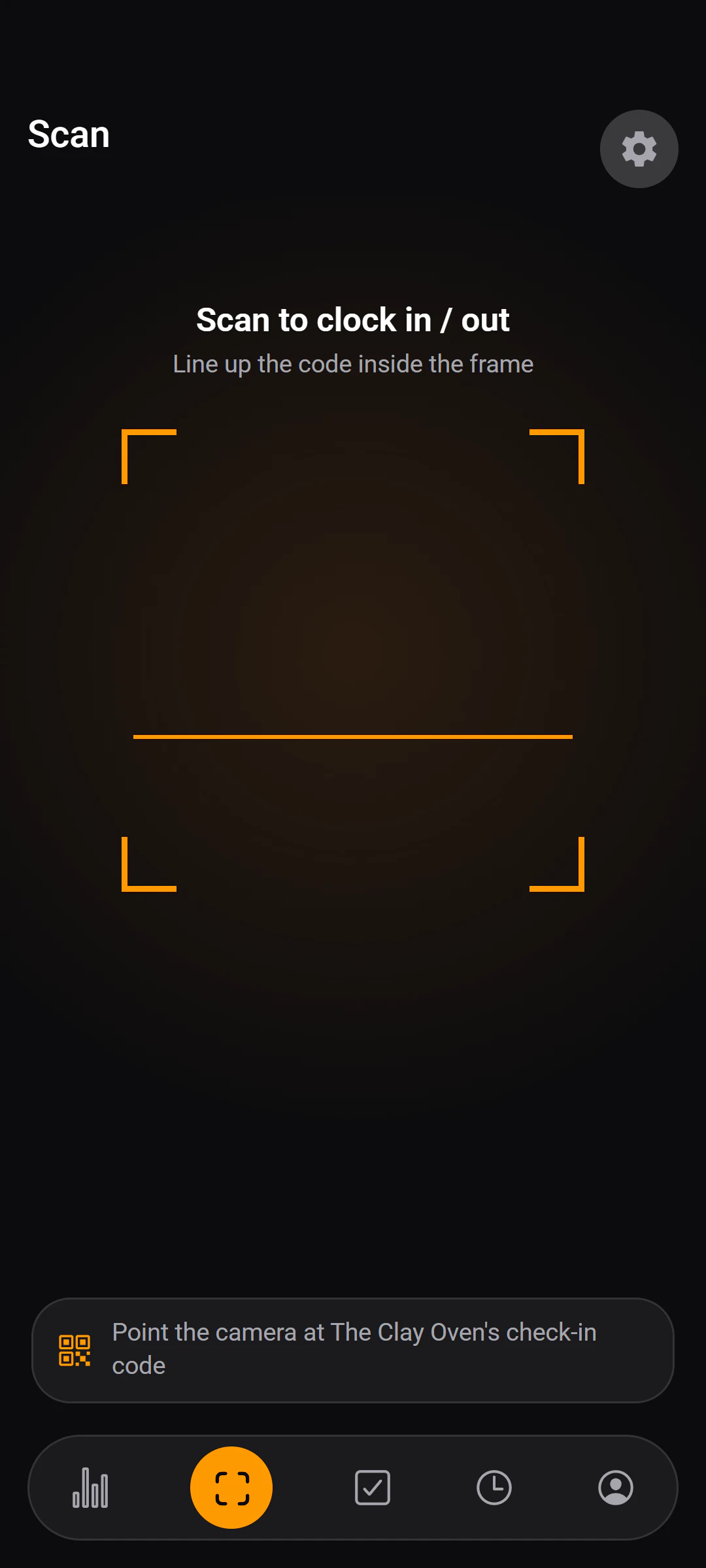
A printed code at the door
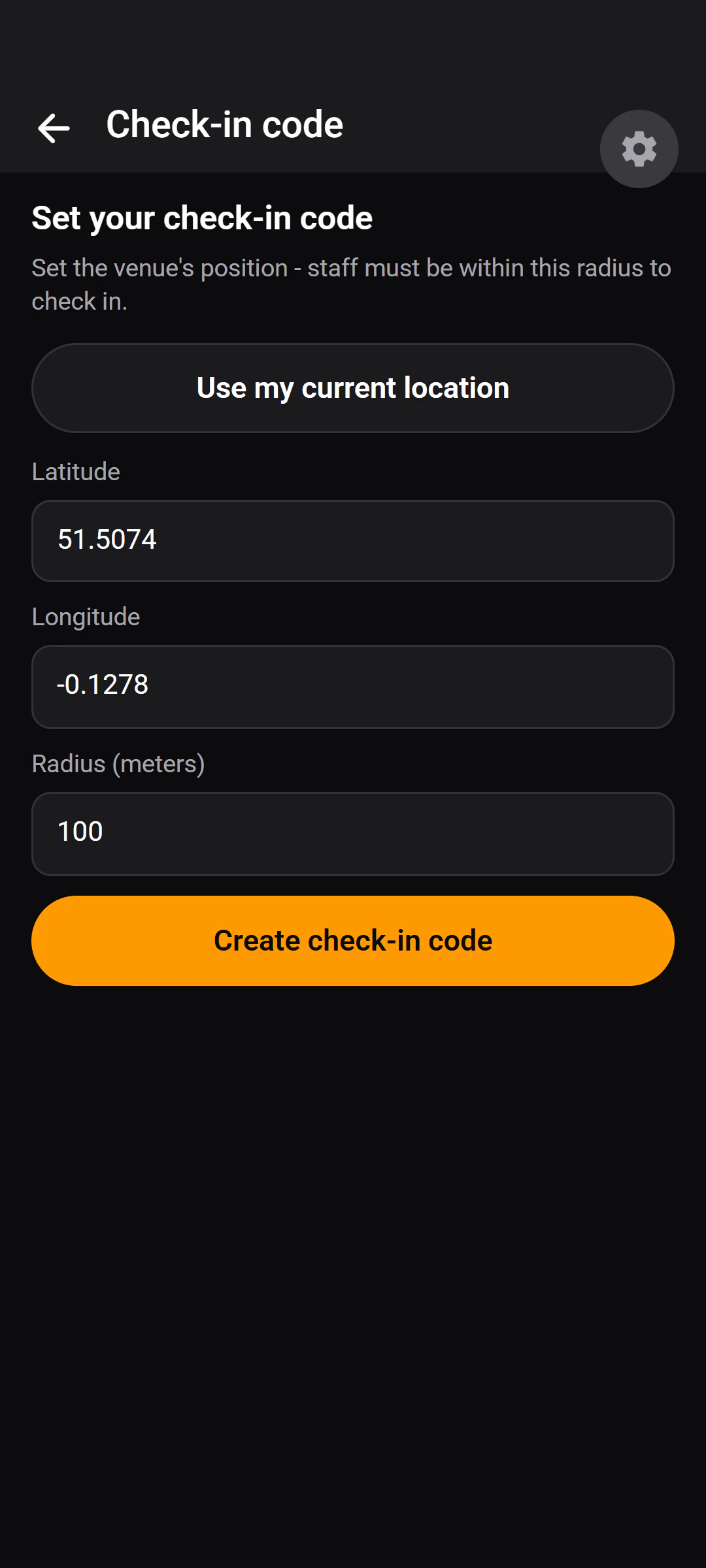
You set the venue's position and radius, then print its QR code and put it where staff arrive. Regenerating the code makes every printed copy stop working straight away.The phone's position is checked
When someone scans, their phone sends its position. Invisiko works out the distance from the venue against the radius you set — 100 metres unless you change it.Outside the radius, it says no
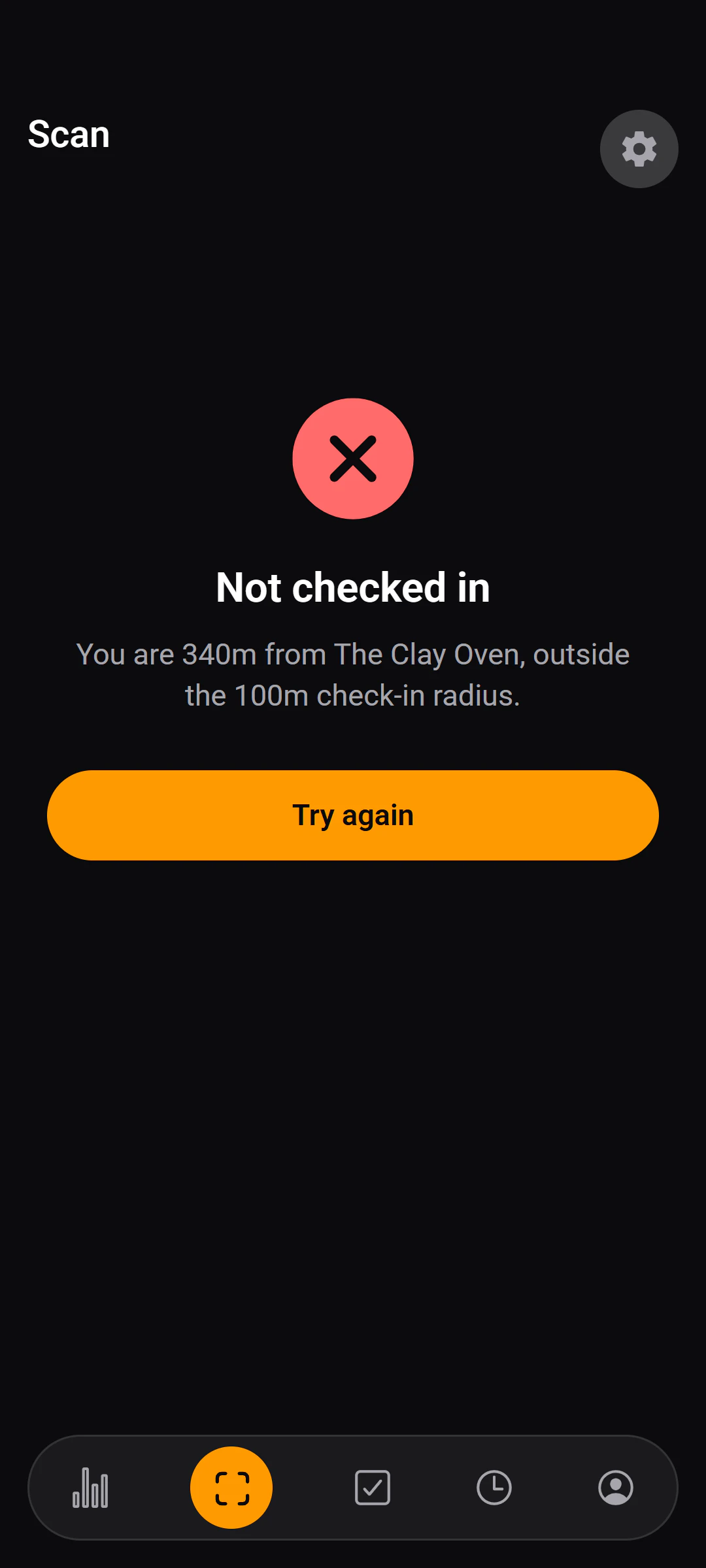
The check-in is refused, and the message says how far away the phone is. Inside it, the check-in is recorded and matched to their shift on the rota, and staff can see their own record.
“You are 340m from The Clay Oven, outside the 100m check-in radius.”
The venue name is your restaurant's own, and the radius is whatever you set. A second scan moments after checking in is treated as a double tap, not a check-out.
What it is, and what it isn't
Invisiko checks where the phone says it is, and refuses a check-in outside your radius. It is not a fingerprint or face scan, and because it relies on the position the phone reports, it is a check rather than a guarantee. Staff are asked for camera and location permission at the moment they first scan.
The rota
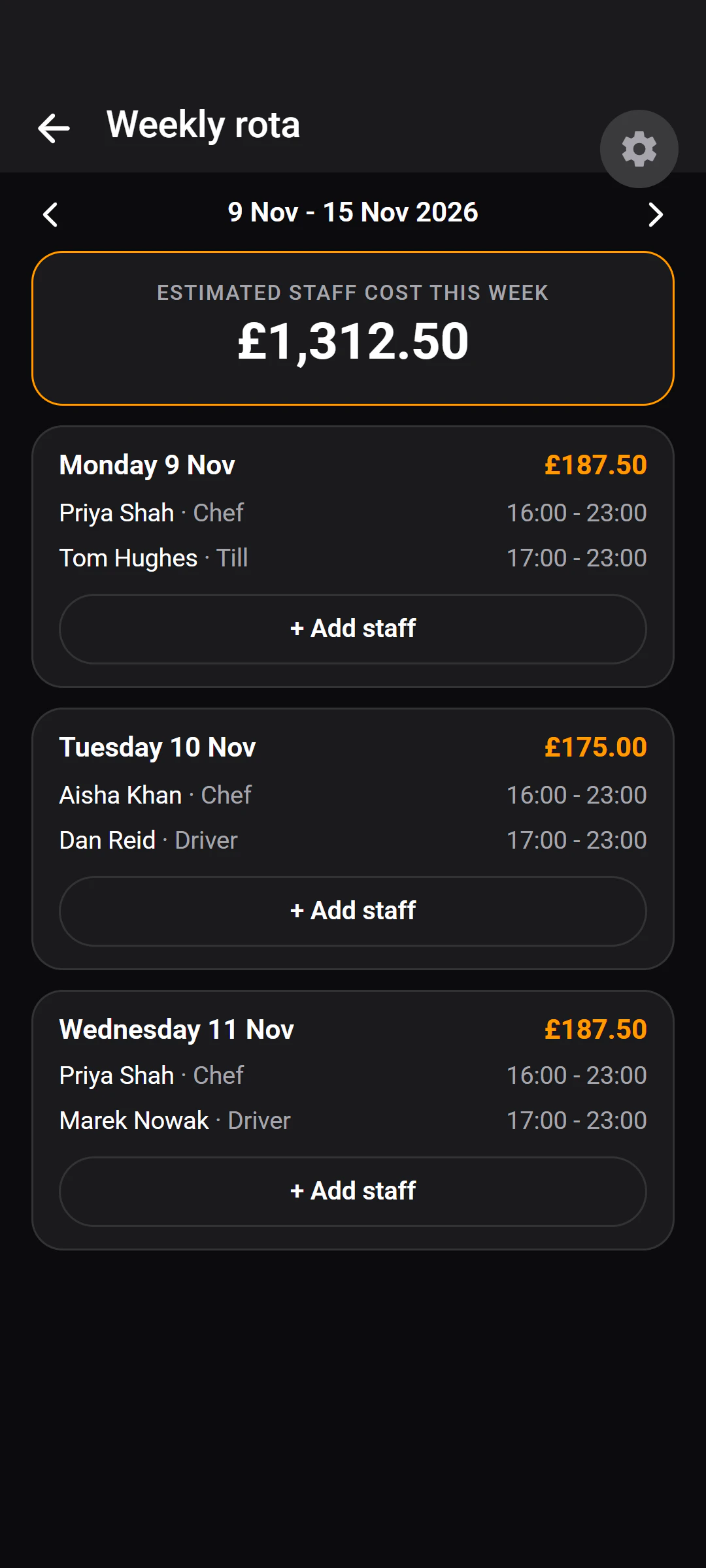
Build the week, and see what it costs as you go.
- The estimated staff cost for the week updates as you build it.
- The job is set per shift — chef, driver or till — so the same person can cover different roles on different days.
- Check-ins are matched to the shift on the rota where one exists.
Swaps
Shift swaps that go through you.
Staff offer a shift to a named colleague, with a reason if they want to give one. The shift only changes hands when you approve it.
- You approve or decline from your phone.
- Everyone involved gets a push notification when a swap is requested, and again when it is decided.
- Staff also hear when a shift of theirs is added, changed or cancelled.
Corrections and honesty
Mistakes get fixed. Fixes stay visible.
If you have ever argued about hours, this is the part that matters.
A manager can correct a record
The correction is kept marked as a manual override — it is never silently rewritten as if it had always been that way.
Staff can add their own note
Anyone can attach a note to their own check-in, so their side of it is on the record too.
What managers see
Who's on, and how the month went.
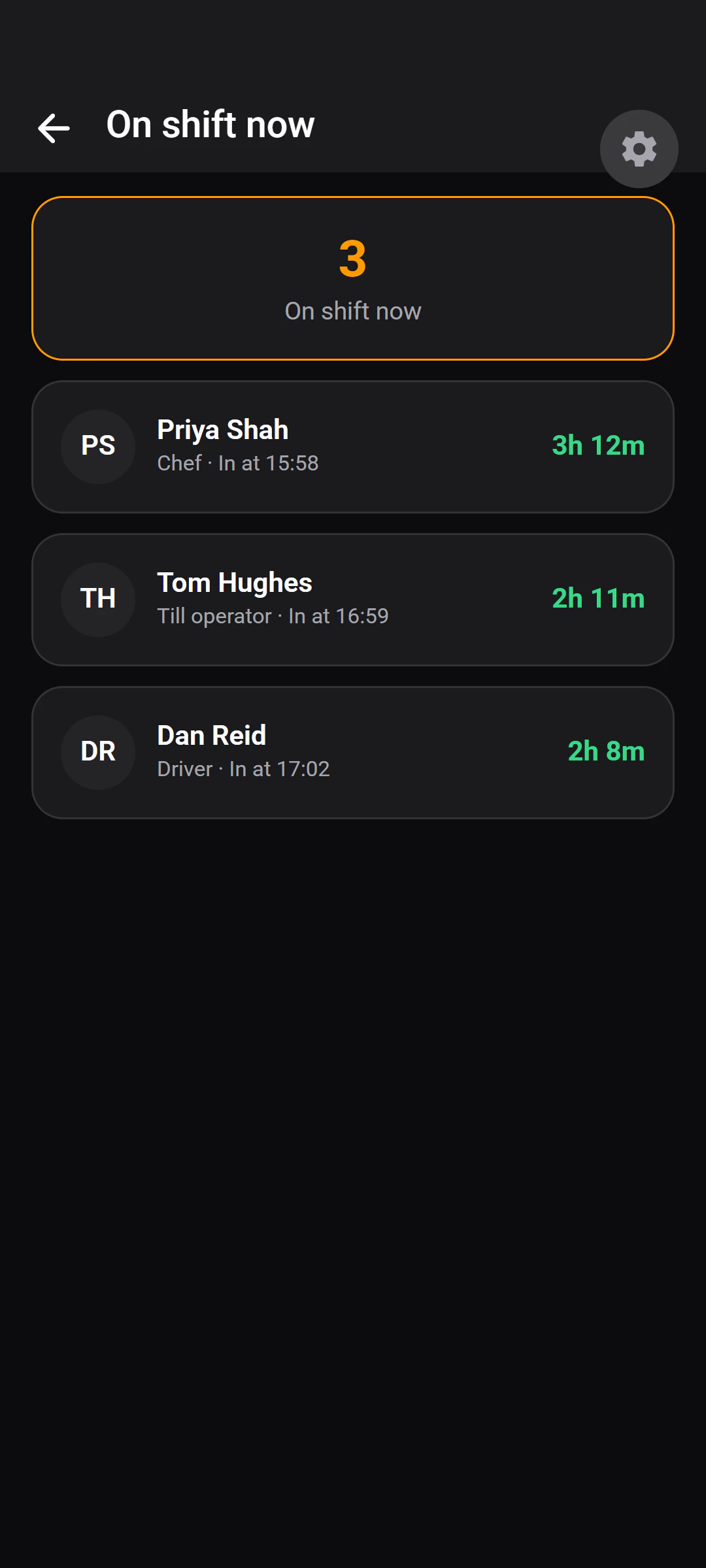
- Everyone currently checked in, and how long they have been on shift.
- A notification when someone checks in.
- Attendance history you can filter by person, and by open or closed records.
- Hours and minutes late per person across the month, and staff cost by month. Staff see their own.
Want hours you don't have to argue about?
Tell us about your place. A person reads every request and replies by email.