
How it works
What setting it up actually involves.
Day one · Manager
Four things to set up.
All of it from your phone. There's no web dashboard to learn.
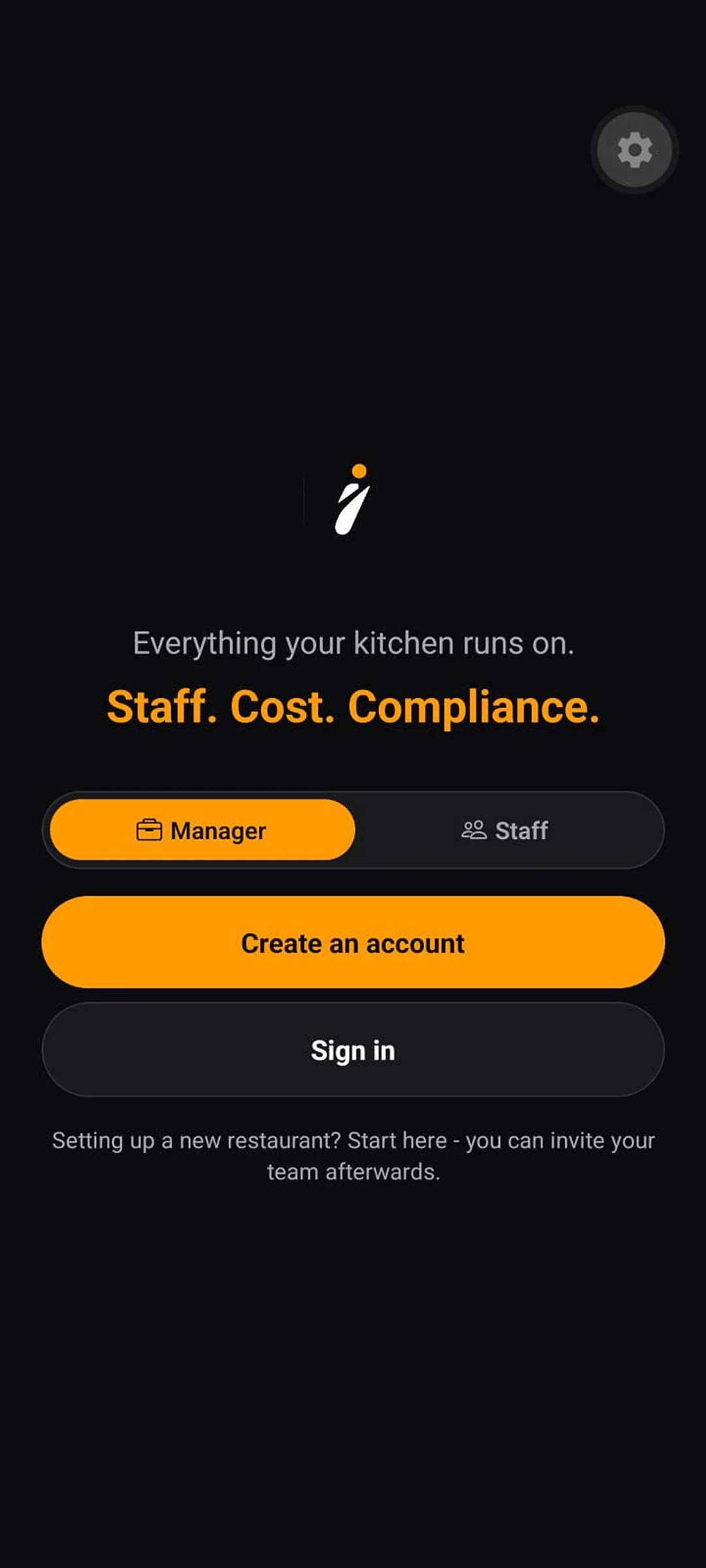
Create your account
In the app, choose Manager and set up your takeaway: its name, your name, phone number and work email. A six-digit code sent to that email confirms it's yours. Your restaurant's dashboard opens once it is set up.Print the venue code
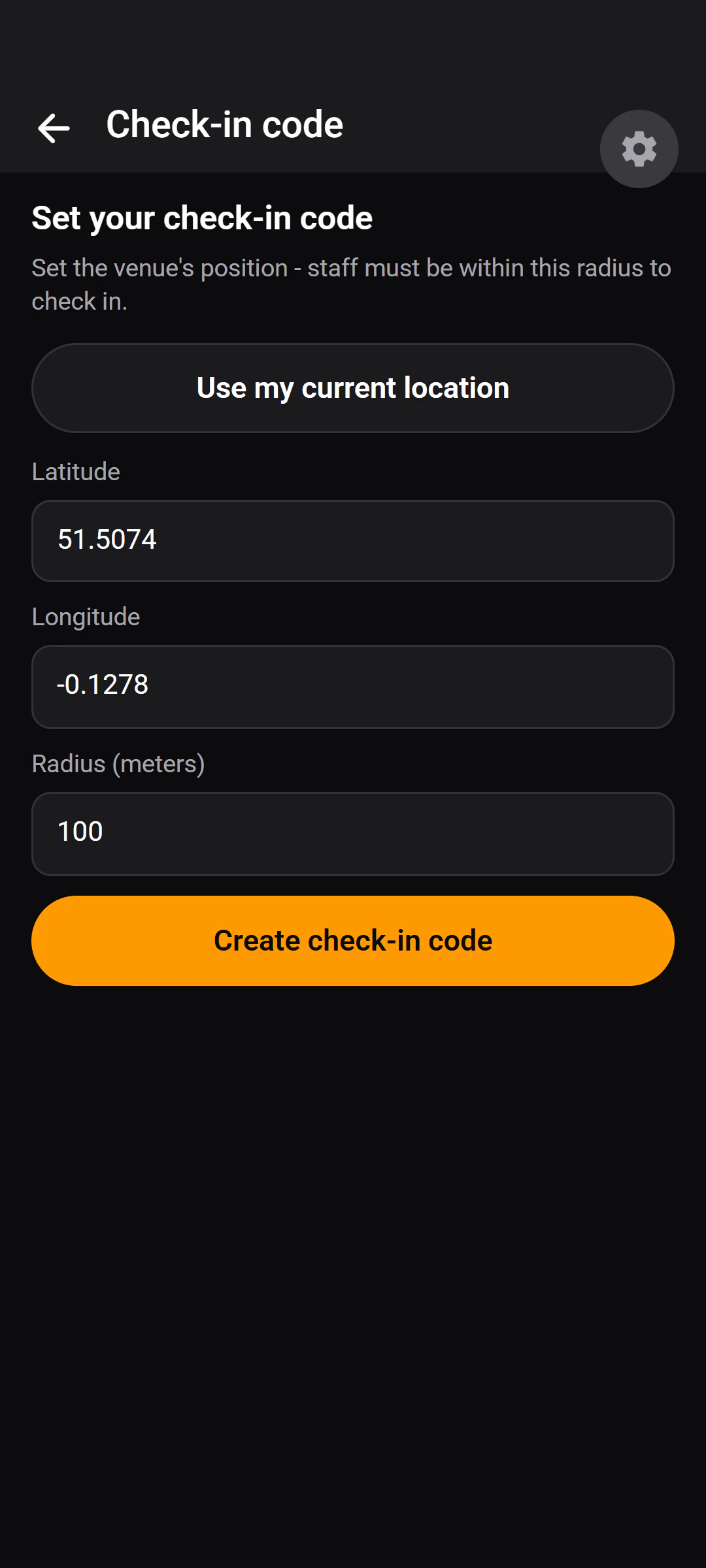
Generate your QR code and print it. Stand at the venue to set its position from your phone, then choose the check-in radius. Regenerating the code makes printed copies stop working immediately.Add fridges and checklists
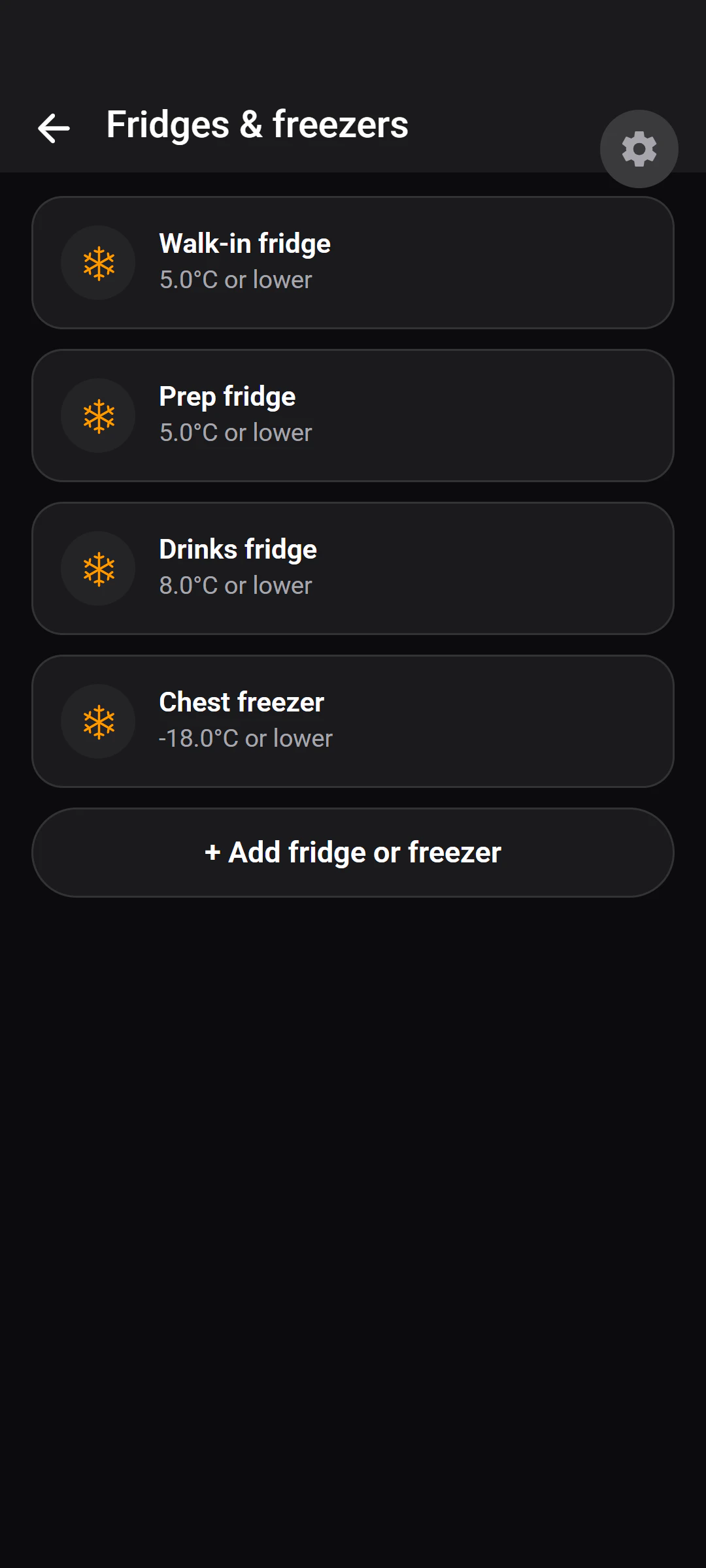
Register each fridge and freezer with its recommended maximum temperature. Write your opening and closing checks, and any daily, weekly or monthly lists, in your own words.Invite the team with one code
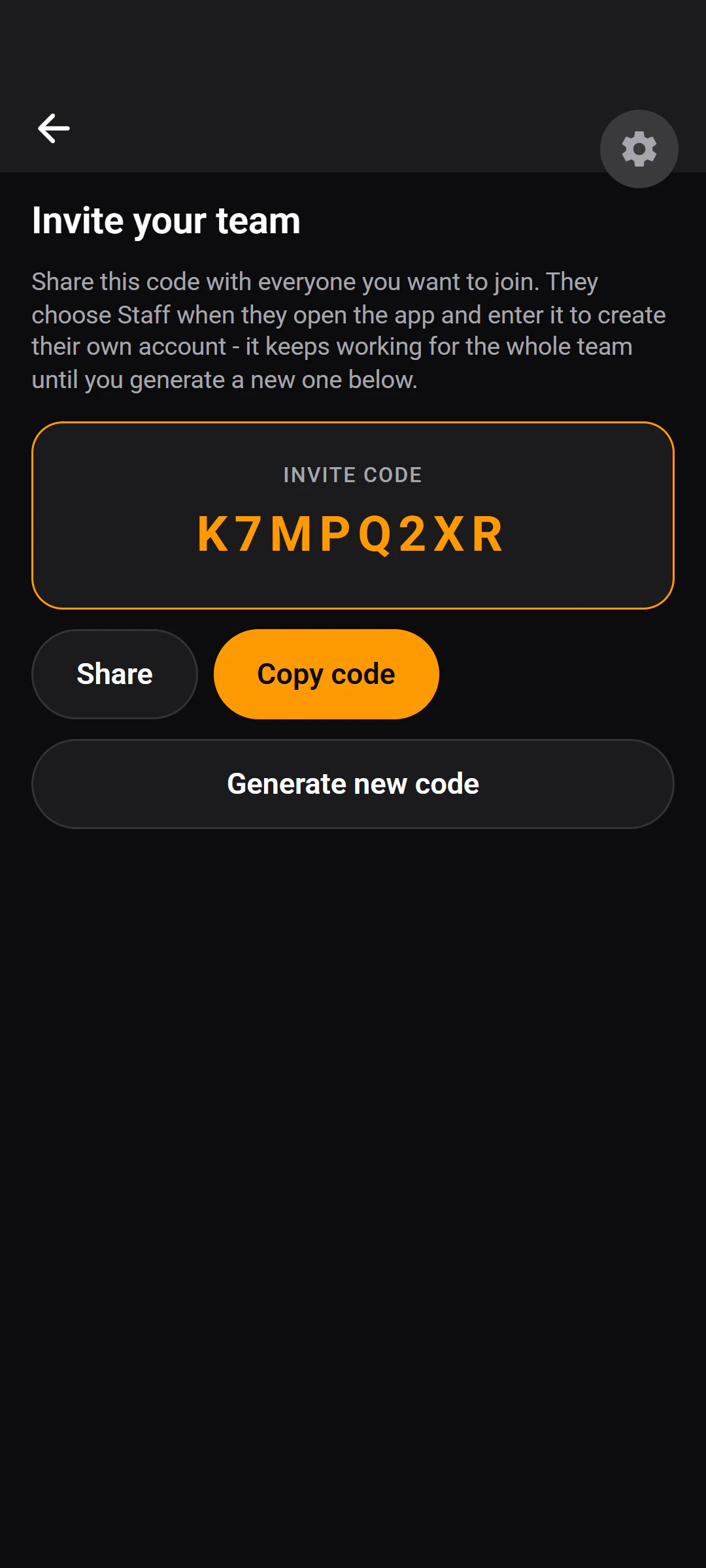
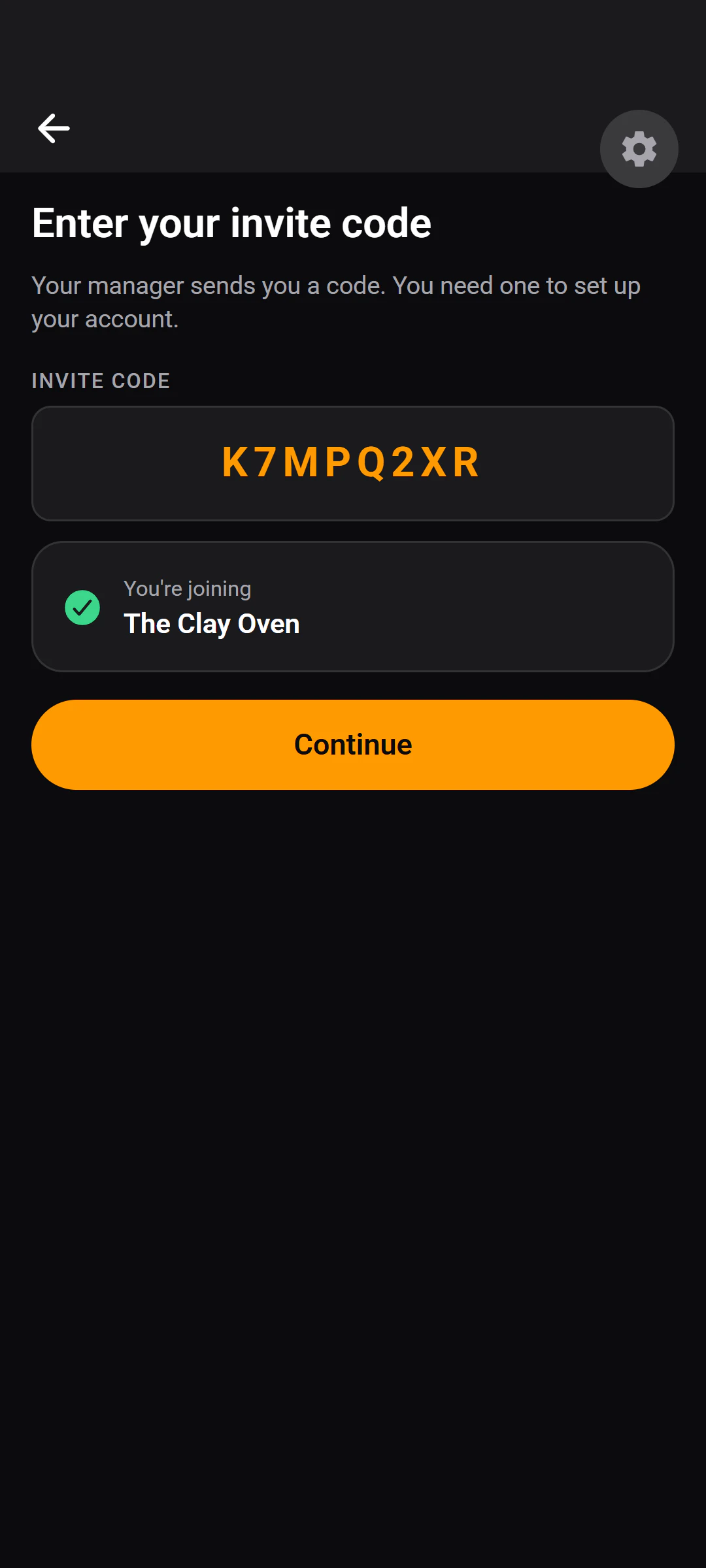
Share an eight-character staff code. The whole team can use it until you regenerate it, and it expires after 14 days. A code for another manager works once only.
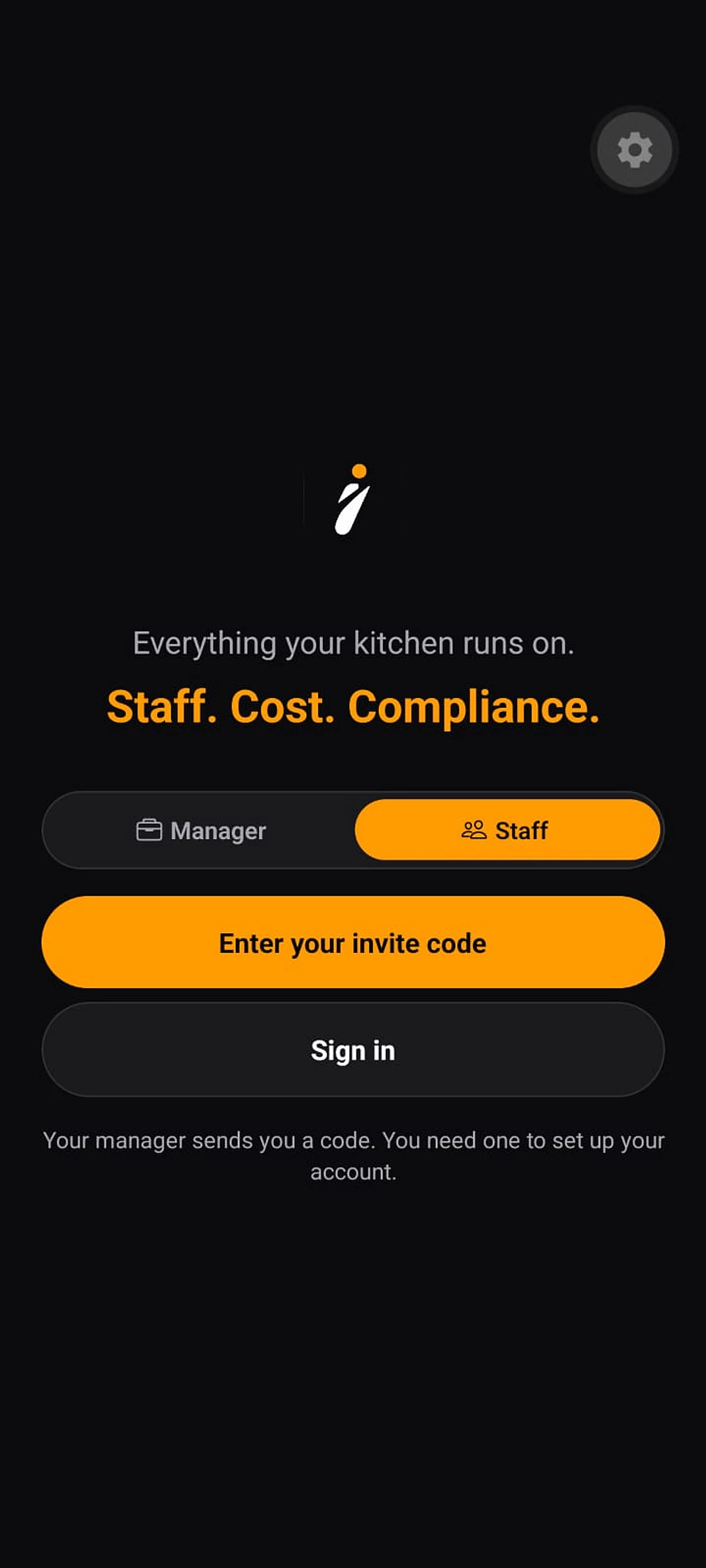
Day one · Staff
Install, enter the code, scan at the door.
Nobody needs an account created for them by hand.
Install the app
On their own iPhone, and choose “Join a team”.Enter the code
Then their name, email and a password. A six-digit code confirms their email, and they're signed in.Scan at the door
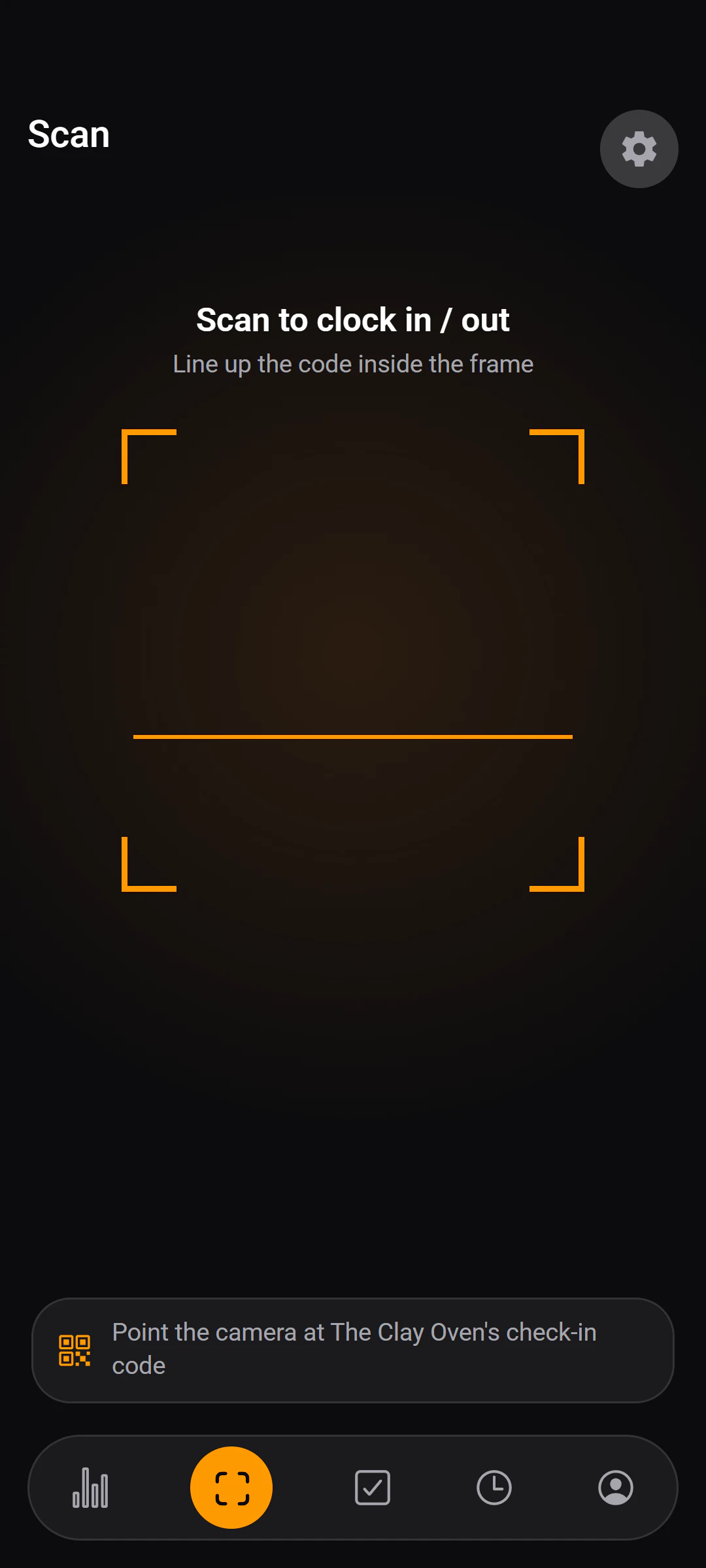
The first scan asks for camera and location permission. From then on, checking in is one scan — matched to their shift where one is on the rota.
The first week
The work you already do, recorded as you do it.
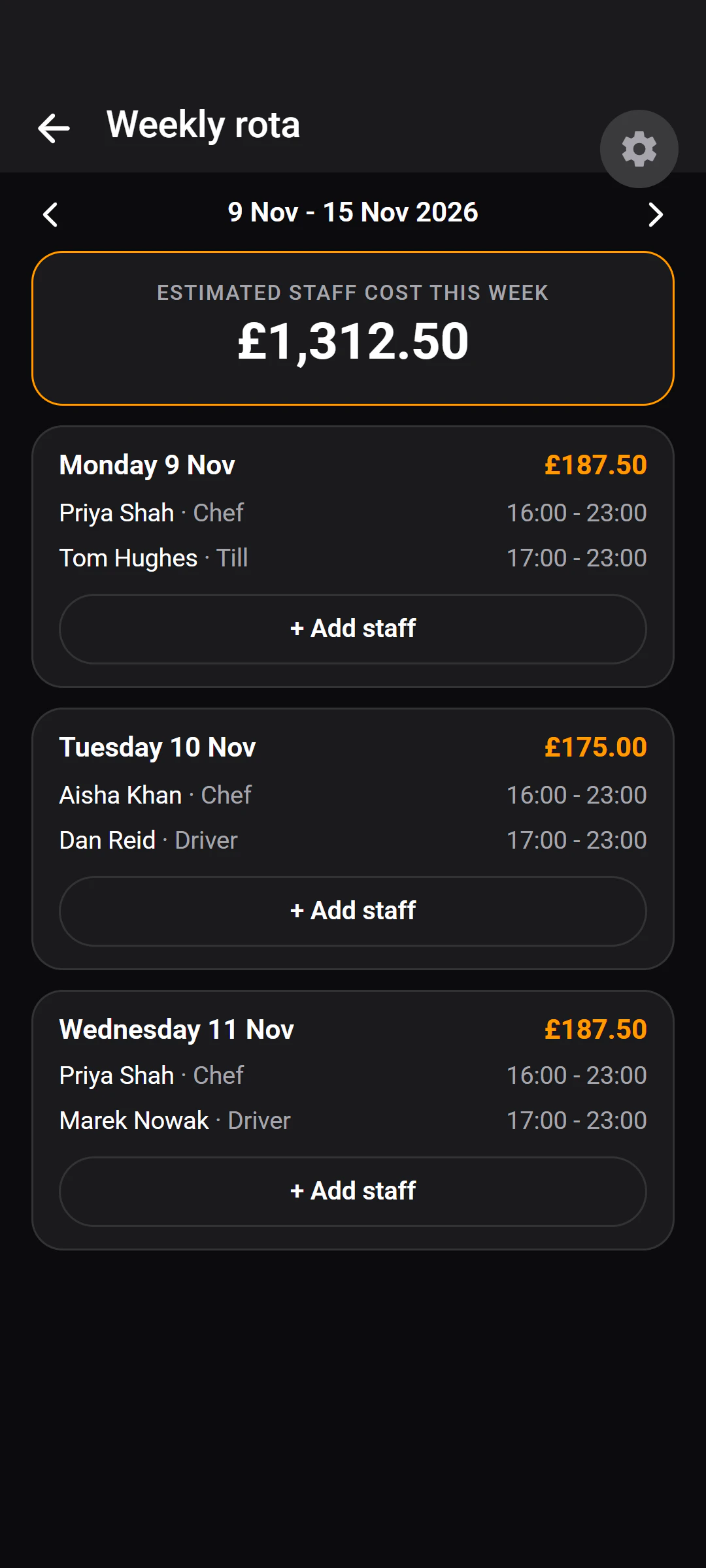
The rota
Add the week's shifts. The estimated staff cost updates as you build it.Opening and closing
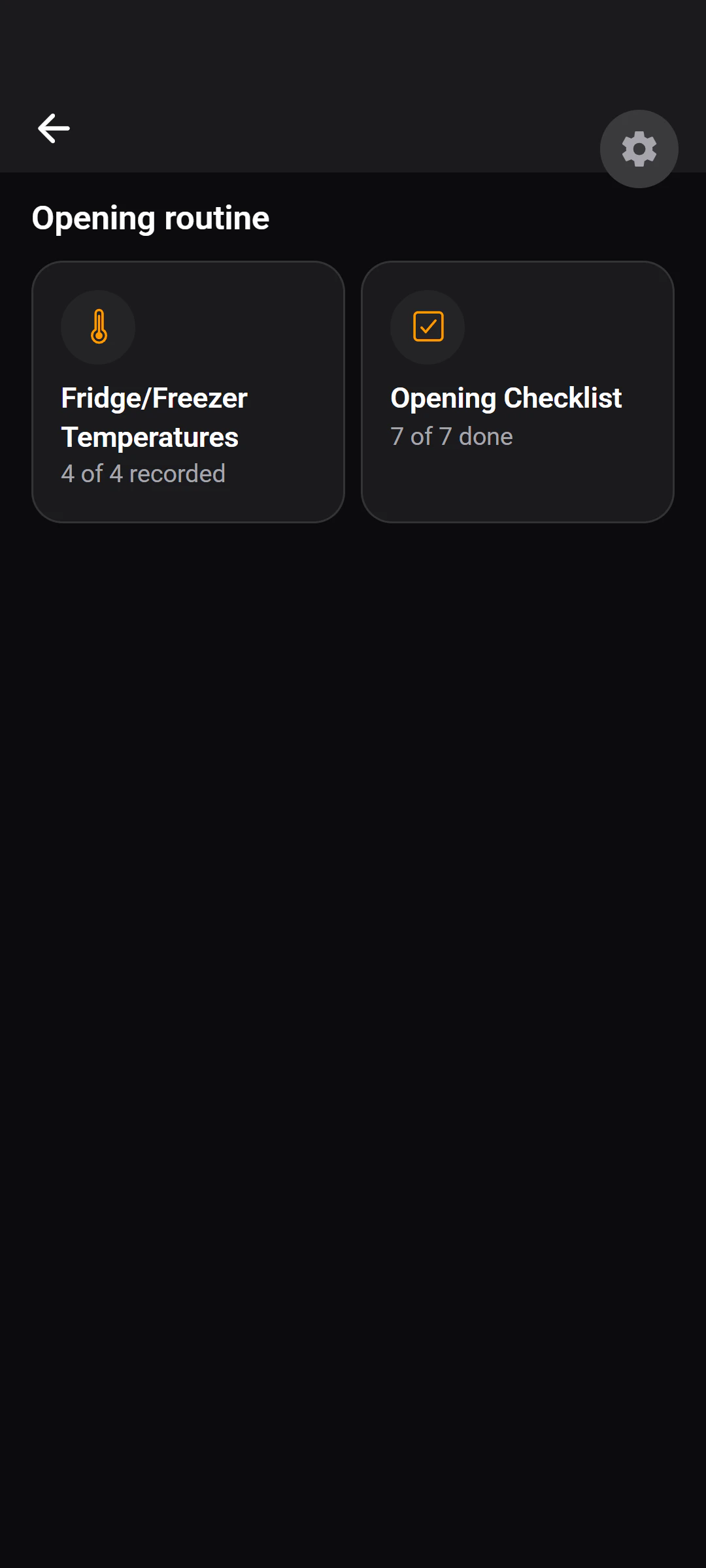
Staff record fridge temperatures and tick off checklist items — each with a name and a time.Deliveries
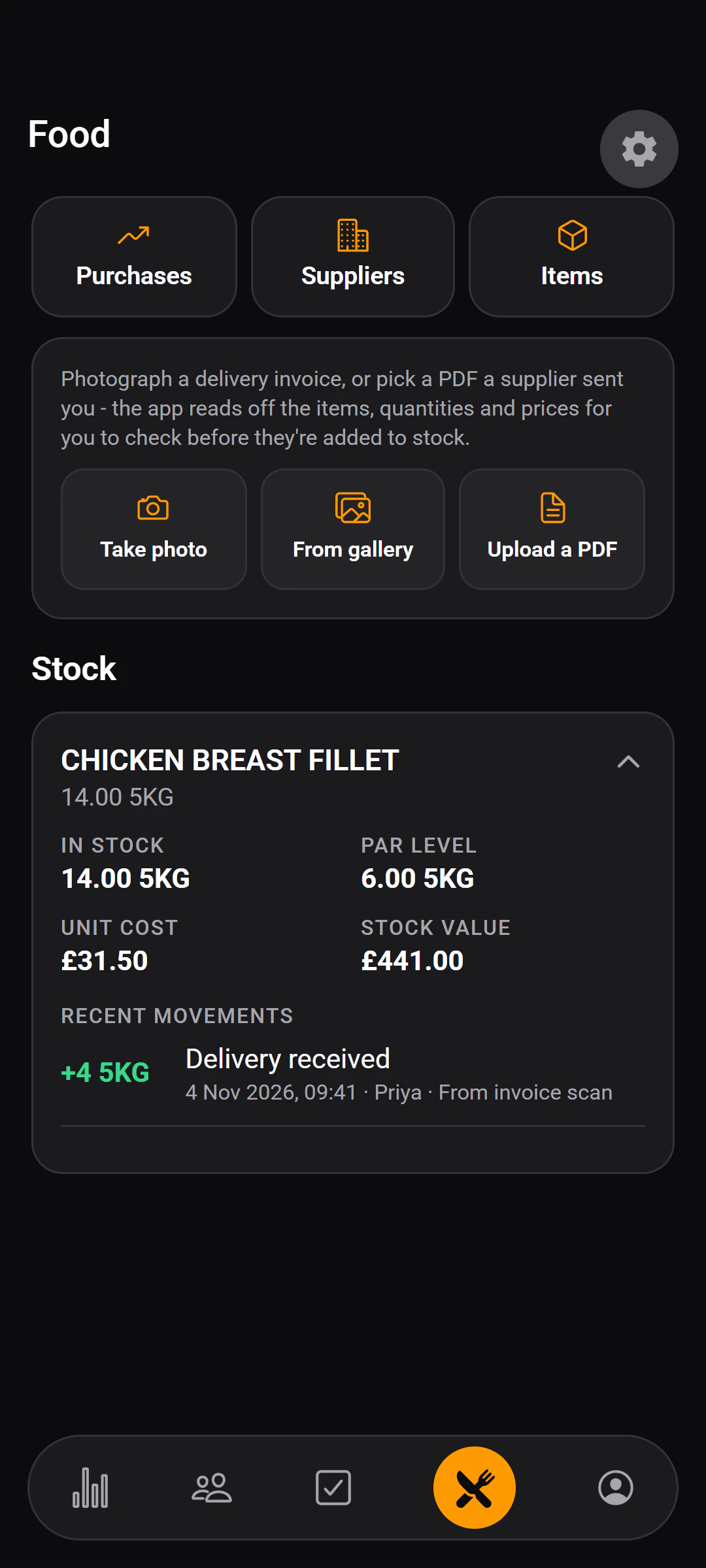
Photograph a delivery note, check the lines it read, and confirm them into stock.Swaps
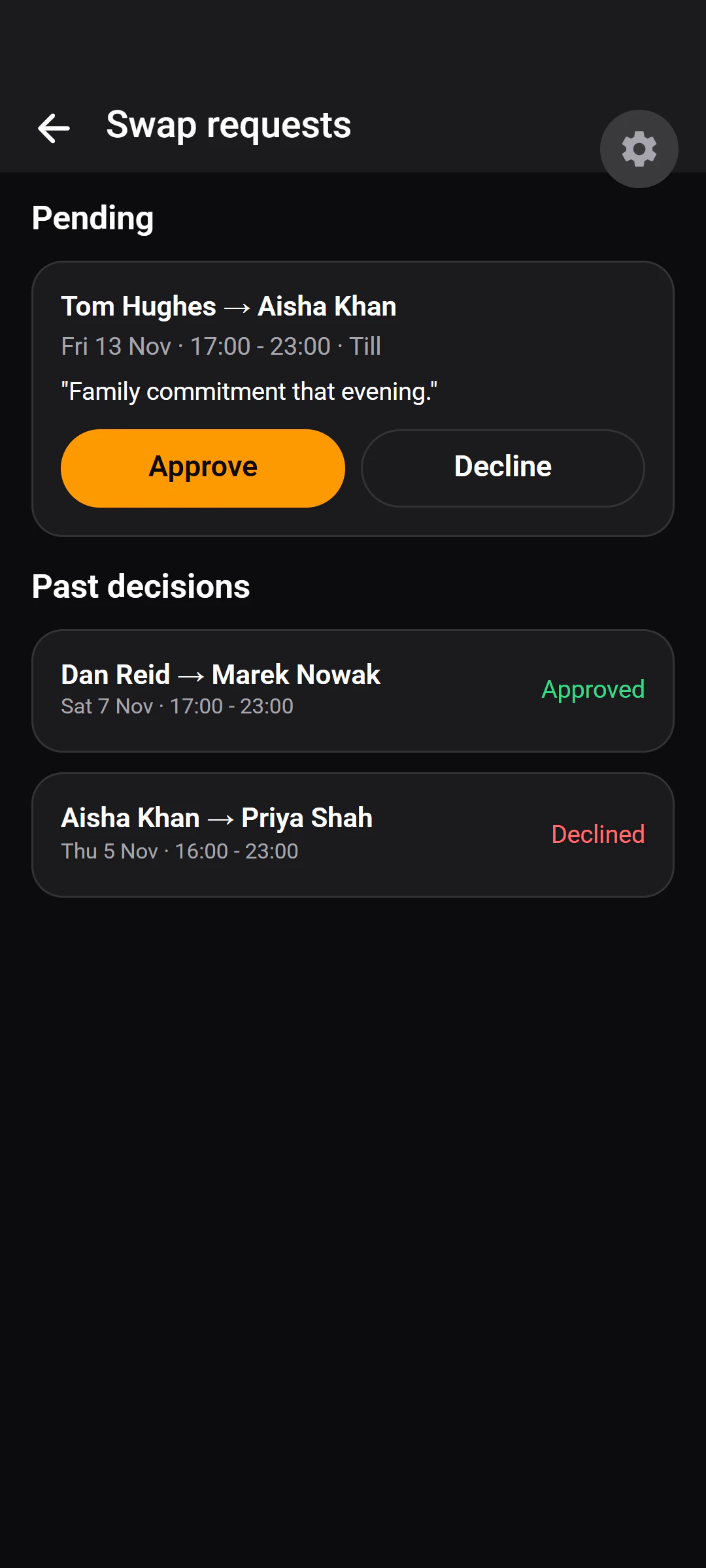
Staff offer shifts to colleagues. You approve or decline from your phone.Pay
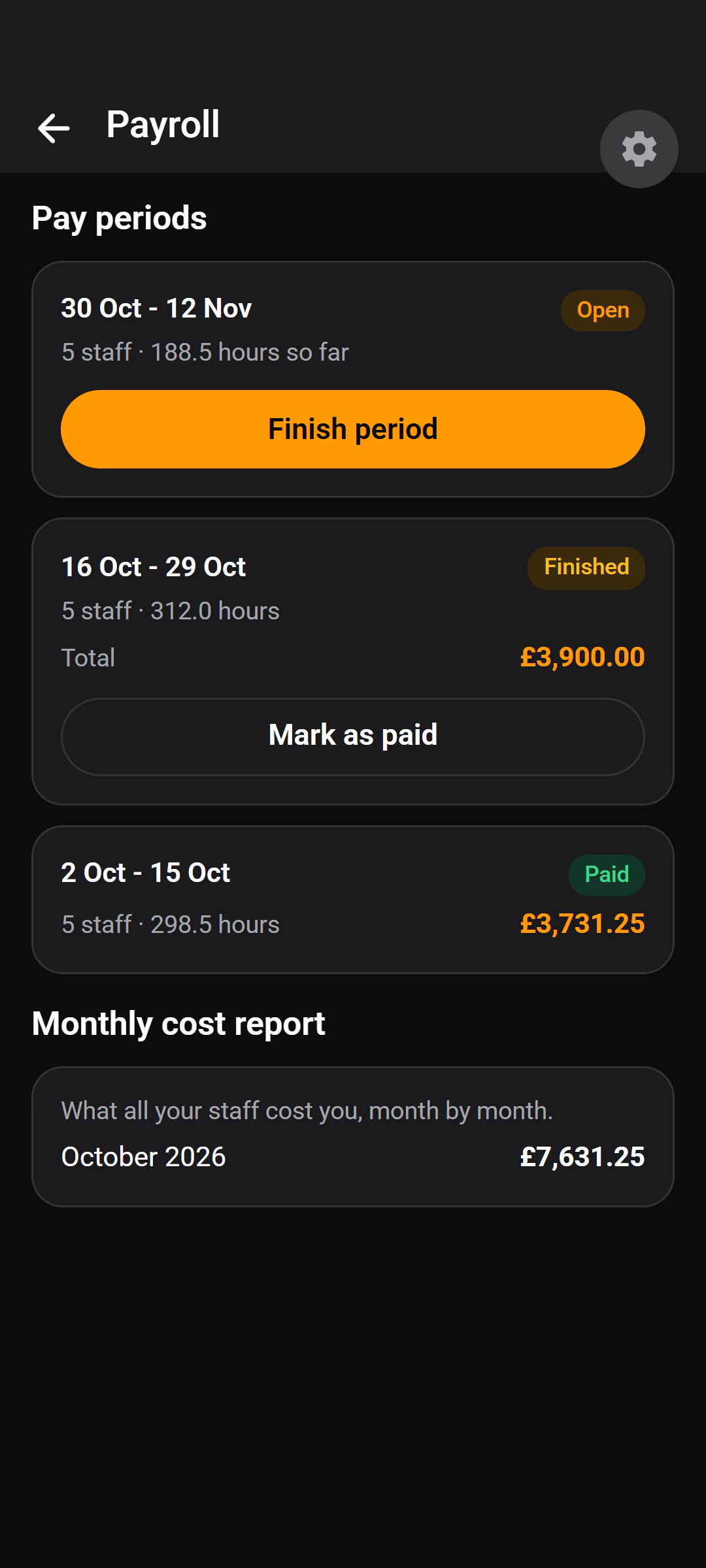
Open a fortnightly pay period. Hours accumulate from check-ins until you close it.
What you need
Three things, and no web dashboard to learn.
An iPhone for each person
Invisiko is built for iOS. Android phones and iPad aren't supported.
A printed code at the door
One sheet of paper where staff arrive.
A connection
Invisiko needs the internet to check in, record a check or read an invoice. There is no offline mode today.
Questions
About getting started.
No. Everything, including the manager's side, happens in the mobile app.
The rota, pay periods, purchase history and documents are all on the manager's phone.
With one invite code you share. Staff install the app, choose to join a team, and enter the eight-character code.
A staff code works for the whole team until you regenerate it, and expires after 14 days. Each person then sets their own name, email and password.
iPhone. Invisiko is built for iOS; Android phones and iPad are not supported.
Each person uses the app on their own iPhone — managers and staff alike.
Not today. Invisiko needs an internet connection to check someone in, record a check or read an invoice.
If the connection drops, the app says so plainly and offers to try again.
Want to try it in your kitchen?
Tell us about your place. A person reads every request and replies by email.